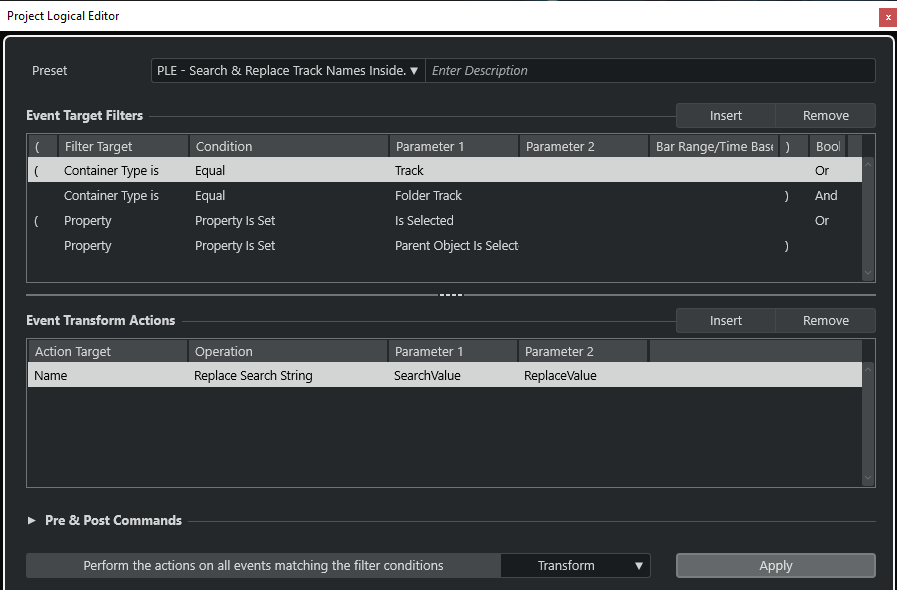
One of the very neat, and likely under-utilized features in Nuendo is the Project Logical Editor. I say under-utilized because I know I sure don’t use it enough. It can make mundane, complex, or repetitive tasks super quick to handle… so long as you take the time to set it up. Pretty much any sort of operation you can manually do in Nuendo, can be automatically ran across any sort of criteria you can dream up.
For instance, recently I had to rename a bunch of tracks inside a bunch of folder tracks. Normally if it was just a few tracks inside of a few folders, I’d probably just take the time to manually rename. In this case, however, it was dozens of tracks inside of dozens of folders that needed specific parts of the track names replaced.
I took ~5 min and figured out a nice Project Logical Editor setup that worked for me. I simply:
- Select Folder Track
- Set the search and replace values in Project Logical Editor (Parameter 1 & Parameter 2)
- Click Apply
- All of the tracks inside the folder track that contain the search value will be renamed appropriately (Along with the folder track itself!)
This is a fairly specific Project Logical Editor preset, but I’m sharing it here in case anyone else finds it useful! If anything, I hope it encourages you give the Project Logical Editor a second look! Check out some of the built in presets for inspiration. Such a powerful tool for a DAW to have.
To use this preset:
- Open the Project Logical Editor
- Click the presets dropdown – “Show User Presets Location”
- Copy the XML from the .ZIP into this folder
- The preset should now show up in your User Presets!
If you don’t want to mess with all that, simply match this picture to get the same result: